Based on the API Reference
Typical workflow of the integration
- Create a survey in Qualtrics
- questions
- quotas
- Create a JSON project specification for Dynata
- category
- filters
- quota plan
- Start the project in Dynata
- Provide redirect URLs in Qualtrics for the completes and over quotas
- Buy project in Dynata
Authentication
library(g6tr.api)
readRenviron('../.Renviron')
At start we get all needed authentication parameters that were provided by Dynata, the moment they have created an account for us.
dynata_auth(TRUE)$credsAccess token
Those are used to create the access token, which is a summary of the permissions. We will use this access token in next calls.
dynata_auth(TRUE)$tokenData Endpoints
Thanks to the created access token, we are able to access data endpoints to list possible attributes for the quota plan, possible languages, countries, survey categories or supplier sources.
Survey Categories
dynata_endpoint('categories')Countries and languages
dynata_endpoint('countries') %>%
  mutate(supportedLanguages = substr(supportedLanguages, 1, 40))
Attributes for a specific country and language
That can be used to create the quota plan
dynata_endpoint('attributes') -> us_attributesSupplier sources - for US
dynata_endpoint('sources')Handling projects
All previous calls were the GET calls, since we were only extracting the available fields with their values. In this chapter you can see examples of the POST calls where we send the actions to be made (e.g. project creation).
Project creation
project <- system.file('dynata/dynata_example_10_targets.json', package = 'g6tr.api')
file.copy(project, to = file.path(getwd(), 'dynata_test.json'))
Project can be created with the POST action, where the project specification is provided to the body of the call as a file
# extProjectId <- 'YourNewCustomProjectID'
# now edit the extProjectId field in the dynata_test.json file!
dynata_project_create(file = 'dynata_test.json')
One can see the specification of the project in the JSON format. The most important fields are:
- distinctive
extProjectId -
categoryof the survey -
lineItemsthat specify- the language
- the
surveyURL - indicativeIncidence
- daysInField
- lengthOfInterview
- sources id
- targets
- filters
- like target only specific CENSUS Region or specific Gender
- and the quotaPlan
- that can be interlocked (example at the end of the document)
- non-interlocked (example below)
- or mixed
List projects
projects <- dynata_project_list()

projects[, 1]
projects[, 2:3]
projects[, 5:7]
Feasibility and pricing
feasibility <- dynata_project_feasibility(extProjectId)
t(feasibility)
Buy project - NEVER EXUCTED
dynata_project_buy(extProjectId, file = project)Project report - work for bought projects
dynata_project_report(extProjectId)Close (bought) project
dynata_project_close(extProjectId)Redirect links / star&end links
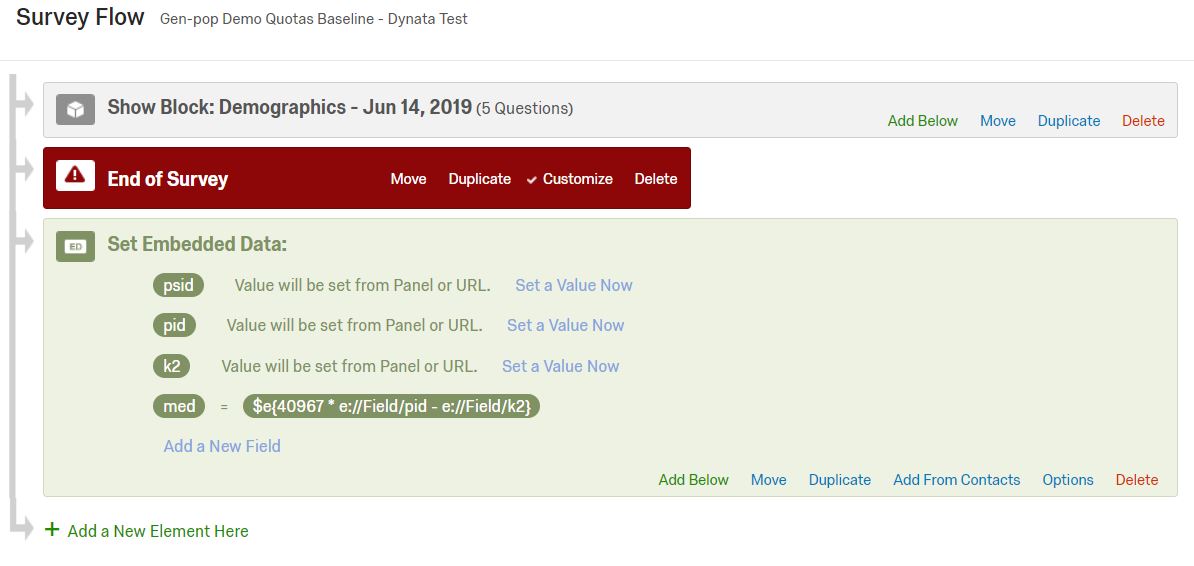
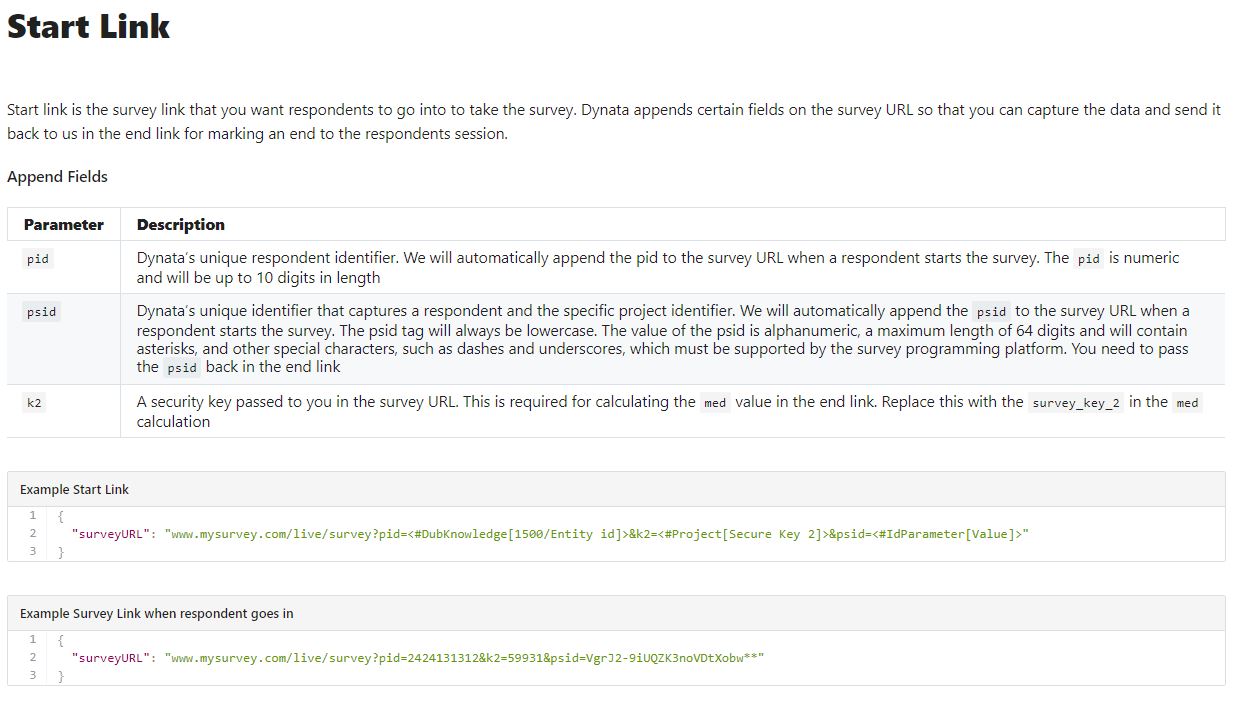
One needs to provide the URL to the survey in the lineItem specification of the project specification. Dynata will append this url with 3 special parameters that are used to track respondents on their side. That is how the start link will look like. For the start link, the special embedded fields need to be added in the survey platform (e.g Qualtrics) for those parameters passed in the start link.
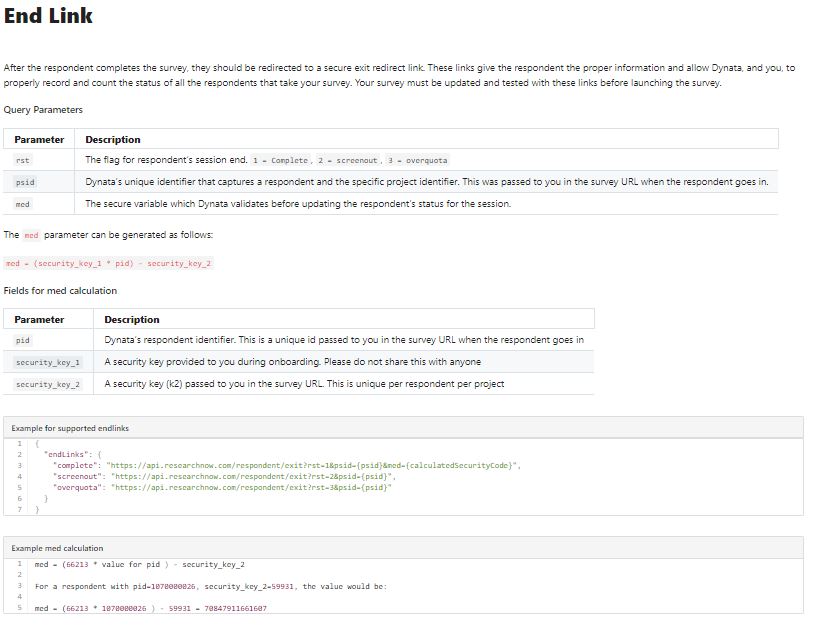
The end link is the URL that a respondent is redirected to the moment
he completes the survey or is screened out or marked as over-quota. All
quotas need to have a customized end of the survey method to redirect to
the end link. The survey also needs to have a customized end URL to
redirect to the end link with a calculated med field for
which we use the 2 secret_keys that are provided
- one is provided in the start link:
k2, - the other is our personal key provided at the account start-up
In the Qualtrics those embedded data specification looks like below